
60 Seconds vs. 60 Days: Why Smart Brands Are Trading Super Bowl Ads for NHRA Drag Racing
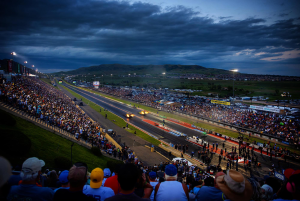
Sold out crowds on multiple days at many races so far in 2026!
We all watched the Super Bowl commercials this year. From old favorites like the Budweiser Clydesdales to some cool newcomers, there’s nothing like it for TV advertising.
Thirty to sixty seconds of glossy production, celebrity cameos, and clever taglines each cost between $8 million and $13 million just for airtime. We re-watched our favorites on YouTube, debated them around the office, and maybe even remembered a few brand names.
That’s traditional marketing. Spend millions for a nanosecond of attention during the big game, and hope the ROI justifies the expense. But here’s the question worth asking: Does a $10 million spend for 60 seconds of airtime really deliver the return brands need in today’s hyper-crowded marketplace?
There’s another way to make your brand memorable. One that trades fleeting moments for sustained engagement, and it’s happening on the fastest race tracks in motorsports: NHRA Drag Racing. 1,000 feet of 12,000 nitromethane-powered horsepower roaring to speeds over 340mph!
The Math That Changes Everything
My company IGTG sponsors race teams at the highest levels of NHRA Drag Racing including Top Fuel, Nitro Funny Car, Pro Stock Car, Pro Stock Motorcycles, and A/Fuel Dragster. And when you compare what that same $8-$13 million Super Bowl budget could buy in professional drag racing, the difference is staggering.
For roughly $5 million, you can fully fund a Top Fuel Dragster or Nitro Funny Car team for an entire season. That’s 20 races between March and November, each spanning three days of televised competition. That’s not 60 seconds. That’s 60+ days of broadcast exposure across FOX, FS1, and FS2, plus live streaming on NHRA.tv.
For a Pro Stock Car or Pro Stock Motorcycle team, that investment drops to between $2-$3 million per season. Your brand isn’t just visible for a moment. It’s front and center, race after race, building recognition with millions of viewers every single weekend.
What $10 Million Actually Buys You in NHRA
Let’s break it down. Instead of one 60-second Super Bowl spot, that same budget could sponsor multiple professional drag racing teams across an entire season. Likely more than one full 20-race season!
Here’s what you’d receive:
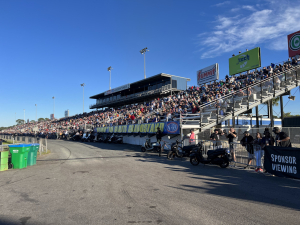
View from near the staging lanes and starting line showing huge NHRA crowds!
Television and streaming exposure: 19 three-day races plus one five-day event equals over 60 days of broadcast coverage. NHRA on FOX recently set a viewership record with 2.065 million viewers for the Texas FallNationals, peaking at 3.631 million. The 2025 U.S. Nationals on FOX drew 1.036 million viewers; a 12% increase from 2024. Weekly FS1 coverage consistently pulls 180,000-210,000 viewers, with some events seeing 38% increases in qualifying viewership. NHRA even outperformed NASCAR in head-to-head weekend TV ratings.
The multiple races on the 2026 NHRA circuit have been SELL-OUTs including the brand new NHRA Potomac Nationals at Maryland International Raceway, the New England Nationals in Epping, New Hampshire and one of the most recent races: The Super Grip NHRA Nationals at Bristol, Tennessee!
Unmatched hospitality and access: Pit access, driver meet-and-greets, sponsor viewing areas near the starting line, and daily catered hospitality for your employees, partners, and customers. Watch the “ballet of the thrash” as crew members rebuild engines and clutch systems just feet from where you’re standing. It’s visceral, memorable, and impossible to replicate in a conference room. I could spend hundreds of “column inches” of text here to describe the experience, yet regardless of how passionate I’m for this sport and marketing in it, couldn’t begin to do the “on-site, real” experience justice!
Employee and customer engagement: SCAG Equipment, a major NHRA sponsor and owner of four full-time nitro teams, hosts local distributors, dealers, and their employees at each race. Over three days, guests experience the sport up close in the SCAG Racing pit box near the starting line. They share meals with professional drivers and crew in the hospitality area, and build relationships that extend far beyond the racetrack.
Celebrity spokespeople who actually show up: Your sponsored drivers don’t just appear in a commercial, they make appearances at your company headquarters, engage with your team, and become authentic ambassadors for your brand. Our sponsored Nitro Funny Car owned and driven by Paul Lee regularly takes the entire race team operation to major sponsors’ headquarters to showcase the car, the operation, and the team. Many of the professional driver/owners will do this throughout the season… not only to honor sponsorship commitments but to celebrate sponsor and race team partnerships with company employees and their families at events in the parking areas of corporate headquarters.
Access to billion-dollar partnerships: Many of the world’s largest companies sponsor NHRA teams. Want to start a conversation with a potential partner? There’s no better icebreaker than three days together at the races.
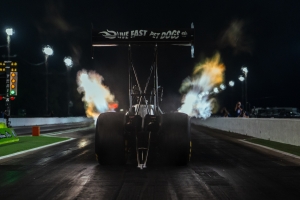
Standing behind a Top Fuel Dragster on the starting line: You must EXPERIENCE!
Normal Gets Normal Results
During an interview I ran across on one of the social media apps, Jesse Cole, owner of the Savannah Bananas, put it perfectly: “Normal gets normal results. There is a lot of normal out in the world. There is not a lot of extraordinary, and to do extraordinary you gotta think of everything that’s normal and do the exact opposite.” For the record, that “extraordinary” he explains has created a waiting list of more than five million ticket requests to see the Bananas play baseball in their unique ways!
A Super Bowl ad is normal. It’s what every brand expects to do if they have the budget. NHRA sponsorship? That’s different. That’s memorable. That’s NOT normal, it’s extraordinary! It’s 60+ days of engagement instead of 60 seconds of hope.
If your company is ready to think differently, to think extraordinary, about marketing ROI, maybe it’s time to trade the Super Bowl for the quarter-mile and start a conversation that “isn’t normal!”
Next Steps
Interested? It is completely impossible to describe on the phone, during Zoom or Teams calls or during a face-to-face conversation everything about drag racing! Believe me, I’ve tried to explain the noise, speed, power, etc., on many calls. You MUST experience first-hand and in-person the raw horsepower, the body-jolting noise, the unmatched acceleration (0 to over 100 mph in 8/10 of a second with the driver experiencing almost 6G-force), and the mind-numbing speed (world record in Top Fuel is 345.00 mph across 1,000 feet of race track…the distance of a bit more than three football fields). All of this plus unprecedented access in the pits, hospitality areas and sponsor viewing areas at the track for you and your team, customers and guests.
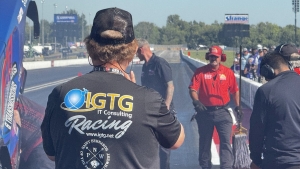
My view just before our Nitro Funny Car run. 0 to over 100 mph in .8 of a second!!
So before you make any marketing decisions to join a team as a marketing partner, come join me for a day of racing action! Races that are hosted in cities like Gainesville, Phoenix, Indianapolis, Pomona, Seattle, Chicago, Charlotte, Rockingham, Las Vegas, Dallas, Norwalk, Sonoma, and others are likely close by and easy to attend.
Contact me at skunau@igtgracing.com or at 513-300-5198 and I’ll introduce you and your marketing teams to professional drag racing marketing managers and team owners and drivers who will create a marketing package that will blow your Super Bowl ad ambitions out of the stadium!